
Friday, late afternoon, ticket queue still glowing red, and somebody says, “Can you remove this machine from the domain before you head out?” That request sounds tiny right up until the box won’t talk to a domain controller, the old admin left months ago, and the user’s desktop is packed with files they swear are “backed up somewhere.”
That’s when remove machine from domain stops being a checkbox and starts being cleanup work.
A lot of guides make this sound cleaner than it is. Click a setting, enter credentials, reboot, done. Sometimes, yes. Often, no. The ugly parts are what happen after the machine leaves. Profiles break. Trust relationships linger. DNS gets stale. Computer objects sit in Active Directory like old lawn furniture nobody admits they own.
If you need a decent refresher on the broader directory side, this expert guide to Active Directory removal is worth keeping open in another tab. And if your audience mixes up website domains with network domains, this plain-English explainer on what a domain means in networking helps clear that up fast.
That Sinking Feeling Before a Domain Divorce
The first thing to get straight is the one mistake that ruins weekends. A workstation is not a domain controller. Treating them the same is how people create outages instead of solving tickets.
Removing a normal Windows client is usually a fast client-side task. Microsoft’s guidance in a community answer describes workstation removal as a 5 to 10 minute process using the GUI, PowerShell, or netdom, while domain controller demotion can take 30 to 60 minutes because it involves replication checks and FSMO role transfers before removal (Microsoft Learn Answers).
That difference holds greater importance than commonly understood. If you’re standing in front of a retired laptop, you’re doing a trust break and a reboot. If you’re touching a domain controller, you’re working on infrastructure that can affect authentication and replication across the environment.
Practical rule: Before you remove anything, answer one boring question first. “Is this a client, a member server, or a domain controller?” That answer determines whether this is a quick task or a change window.
The Friday problem usually looks like one of these:
- Repurpose job: Old workstation, new hire, machine still joined to the old domain.
- Offboarding mess: User is gone, laptop is offline, nobody documented the local admin account.
- Migration pain: Site is being shut down, and half the machines still point at old infrastructure.
- Inherited environment: You didn’t build it, the old MSP is gone, and the only documentation is a spreadsheet named “final_final_v3.”
In all of those, the command itself is rarely the hard part. The hard part is getting the machine out cleanly without losing access, losing profiles, or leaving directory junk behind.
That is the central aim of this guide. Not just how to remove machine from domain, but how to do it without creating next month’s mystery ticket.
The 'Easy Button' Methods and Their Hidden Costs
For one machine in front of you, the GUI is still fine. It’s not elegant, but it works. The danger is thinking “works” and “finished” mean the same thing.

The GUI path most admins start with
On a standard Windows client, you’ll usually go through system settings, disconnect the organization or change membership away from the domain, and move the machine into a workgroup. Microsoft’s documented client-side options also include PowerShell and netdom, but the GUI remains the familiar route for one-off jobs.
What the GUI is doing behind the scenes is simple enough. It’s breaking the computer account’s trust relationship with the domain and shifting the machine back to standalone behavior. After the reboot, the old domain logon path disappears from the sign-in screen, which is your immediate sign the disjoin completed.
What people forget before clicking OK
The GUI doesn’t protect you from basic operational mistakes. It happily lets you disconnect a machine while you still depend on a domain profile, mapped resources, or domain-only admin access.
Check these before you click:
- Local admin access: Make sure you know how you’ll log in after the reboot. If you remove the machine from the domain without a working local admin account, you’ve just locked yourself out of your own cleanup.
- User data location: Confirm whether files live under the domain profile, redirected folders, synced storage, or nowhere sensible at all.
- Management dependencies: Endpoint tools, software deployment, and policy-based settings may stop applying once the machine leaves centralized management.
- Timing: If the user needs one last export, printer mapping, or app token refresh, do that before the break.
Remove machine from domain is easy. Regaining sane access afterward is the part people skip.
Command line equivalents that beat the click path
For admins who do this more than once a month, the GUI gets old fast. The two usual command-line routes are PowerShell Remove-Computer and netdom remove.
netdom remains handy in older environments and batch-driven processes. Microsoft’s example syntax for removal is:
netdom remove %computername% /UserD:domain\user /PasswordD:*
That * matters. It prompts for the password instead of exposing it directly in shell history, which is the only sane way to use it in an audited environment, as noted in the Microsoft guidance already cited earlier.
PowerShell is the cleaner option when you need scripting flexibility, especially if the same task is headed for multiple machines. It also fits better with modern admin habits, logging, and orchestration.
The hidden cost of the easy button
Here’s the trade-off in plain terms.
| Method | Best use | Weak spot |
|---|---|---|
| GUI | One machine, hands-on, low urgency | Slow, easy to forget post-removal cleanup |
| PowerShell | Repeatable admin work | Needs planning for credentials and restart behavior |
| Netdom | Legacy scripts and restricted PowerShell environments | Less flexible for broader workflow automation |
The GUI is fine when the machine is sitting on your bench and you’re babysitting the reboot. It’s lousy when you’ve got a floor of old devices, remote users, or a profile migration waiting behind the task.
That’s why seasoned admins don’t stop at “the box left the domain.” They ask what the machine lost with it.
Automating the Exit with PowerShell and Netdom
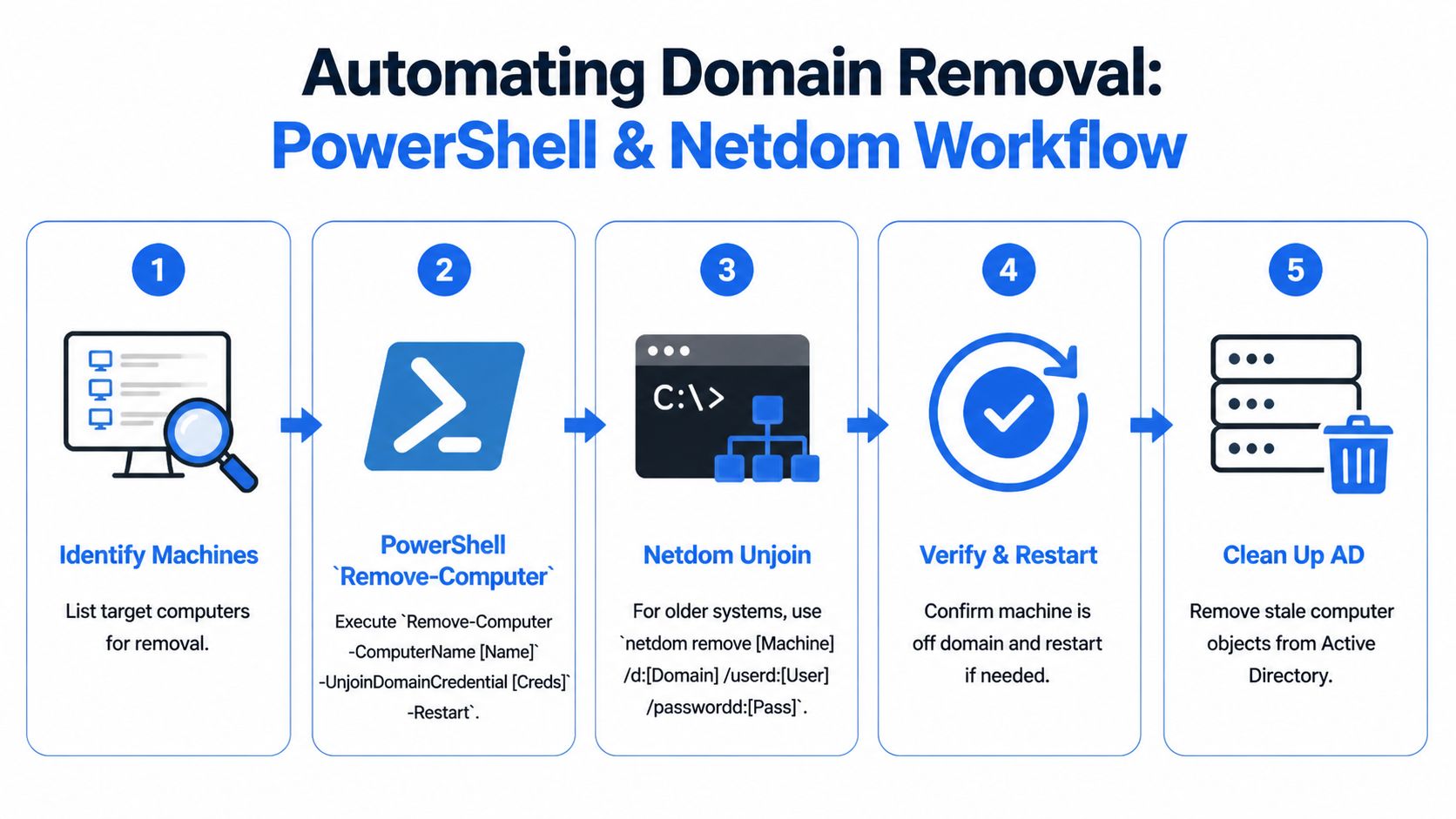
Doing one machine manually feels harmless. Doing twenty that way feels like punishment. In such cases, automation pays for itself in reduced mistakes, not just saved clicks.
PowerShell is the modern default
For current Windows administration, Remove-Computer is usually the right first choice. The useful parameters are the ones that control who authorizes the unjoin, what the machine becomes afterward, and whether the restart happens immediately.
The patterns that matter most are:
-UnjoinDomainCredentialfor the account that’s allowed to remove the machine from the domain-WorkgroupNamewhen you want the machine to land in a named workgroup instead of defaults-Forcewhen you want to suppress confirmation prompts in scripted workflows-Restartbecause the machine isn’t really done until it reboots
A typical admin thought process looks like this:
- Identify target machines.
- Validate they’re online enough to receive the command.
- Supply credentials that are authorized to unjoin the device.
- Trigger the disjoin.
- Confirm the reboot happened and the machine no longer presents as domain-joined.
A practical fleet pattern
For a hardware refresh, I like a simple list-driven approach. Feed computer names from a text file or inventory export, test reachability, then process the healthy ones first. Don’t build a giant “smart” script before you’ve done a small pilot. A boring script that logs outcomes beats a clever one that hides failures.
A straightforward pattern looks like this in practice:
- Collect targets: Pull names from your asset list, not from memory.
- Prompt once for credentials: Don’t hardcode them.
- Process per machine: Try the unjoin, log success or failure, move on.
- Separate exceptions: Machines that fail should go to a remediation list, not hold up the whole batch.
Good automation doesn’t pretend every endpoint is healthy. It assumes several are weird and plans for that.
If you’re building larger workflows around endpoint tasks, configuration management habits matter here too, as broader automation discipline helps more than the unjoin command itself. A practical reference is MakeAutomation's Ansible guide, especially if your team is trying to stop ad hoc scripting from turning into undocumented folklore.
Why Netdom still earns a spot
netdom is old, but old doesn’t mean useless. In restricted environments where PowerShell execution policy becomes a fight, or where legacy batch processes still drive parts of desktop operations, netdom remove is the dependable wrench in the drawer.
The cited Microsoft syntax is still the pattern to remember:
netdom remove %computername% /UserD:domain\user /PasswordD:*
That final * should be considered mandatory. It prompts for the password and keeps credentials out of command history. If somebody insists on putting the password directly in the command line for convenience, they’re creating tomorrow’s security problem for today’s speed.
Picking the right tool without being precious about it
A lot of admins turn this into a style debate. They shouldn’t.
Use PowerShell when:
- You want clean scripting: Better handling for loops, credentials, and surrounding logic.
- You need integration: It fits better with inventory tools, remoting, and admin modules.
- You care about future maintenance: More teams can extend it cleanly.
Use netdom when:
- PowerShell is constrained: Execution policy or environment rules get in the way.
- You have legacy batches: Sometimes the shortest path is the path already wired into operations.
- You need a simple one-liner: No ceremony, just the task.
Keep your logging boring and useful
The best removal script in the world is still a problem if nobody can answer, “Which machines left the domain?” Log the machine name, timestamp, operator, and outcome. Include whether a reboot was triggered and whether the machine was reachable at the time.
A small tracking table is enough:
| Item | What to capture |
|---|---|
| Target machine | Hostname or asset ID |
| Action | PowerShell or netdom removal attempt |
| Outcome | Success, failed, unreachable, credential issue |
| Restart status | Triggered, pending, unknown |
| Follow-up | Profile migration, AD cleanup, manual review |
That table has saved more time than fancy code ever has. Automation is only impressive until someone asks for the exceptions list.
The Aftermath The Cleanup Most People Skip
A machine leaving the domain is the midpoint, not the finish line. The directory, DNS, and local profile state all need attention. Skip that, and you’ll spend the next few months answering weird tickets that all trace back to “we removed it, but…”

Start with the computer object
For normal workstation removal, the machine may be gone from active use while its object still sits in Active Directory. That stale object confuses audits, clutters OU structure, and can trip up future rebuilds if naming conventions get reused.
For servers, especially inaccessible ones, cleanup gets more serious. When a domain controller is offline or inaccessible, manual metadata cleanup through Active Directory Users and Computers and ntdsutil is mandatory, including confirming that the server is permanently offline before deleting the object, so you don’t leave orphaned entries behind that can trigger replication errors across the domain (YouTube walkthrough on FSMO transfer and metadata cleanup).
That specific guidance is for domain controllers, not ordinary workstations. But the lesson carries over: stale directory objects are not harmless clutter.
Then check DNS like you actually mean it
People remember the computer account and forget name resolution. Then months later someone reuses the hostname, clients resolve the wrong record, and the room fills with muttering.
If you need a refresher on the record types involved, this overview of what DNS entries are is a clean primer.
My usual cleanup pass is simple:
- Look for host records tied to the retired machine
- Confirm no dependent internal references still expect that name
- Remove stale entries when you’re sure the machine is out of service
- Recheck after replacement if the hostname is being reused
The ticket said “remove the machine.” The environment hears “clean up identity, resolution, and trust.”
The profile problem nobody warns users about
The human pain often surfaces. The user logs in locally after the disjoin and says their files are gone. They usually aren’t gone. Windows is just using a different profile context.
That leaves you with two broad options.
Migrate the profile carefully
If the machine is being repurposed for the same user but outside the domain, you’ll want to bring over desktop data, documents, browser state, app settings, and anything else tied to the old profile. Some admins use third-party migration tools for this because they reduce manual work and registry risk.
If there’s any doubt about profile health or important user data, get your backup posture straight first. A practical reminder on the recovery side is SES Computers' data recovery solutions, not because profile migration should be treated like disaster recovery by default, but because it can become that if someone starts moving data without a rollback.
Use the manual route only if you understand it
Yes, you can remap profile ownership and adjust the local system so the old data lines up with the new login. Yes, that sometimes works. Yes, it also goes sideways fast if you rush it.
Manual profile reassignment is the kind of job that rewards patience and punishes overconfidence. If you’re editing registry references and profile paths, document every change before you touch it.
Hybrid and cloud-joined wrinkles
Hybrid environments complicate the story. A machine might have ties to on-prem AD, cloud identity, device management, and conditional access policies all at once. In those environments, “remove machine from domain” can also mean checking what other management relationship still exists after the on-prem trust is gone.
That’s why cleanup has to be treated as due diligence, not polish. You wouldn’t evaluate a digital asset without checking history, residue, and future conflicts. Internal infrastructure deserves the same level of suspicion.
When It All Goes Wrong Common Errors and Fixes
The standard guides assume you have good credentials, working DNS, and a machine that still talks politely to the domain. Real life is less cooperative.

Access denied usually means exactly what it says
Admins love hunting for exotic causes when the answer is usually dull. If the machine won’t unjoin and throws a permissions error, start with credentials and rights before chasing ghosts.
A real documentation gap here is the scenario nobody wants to admit happens often: you don’t have proper domain admin credentials. Community discussion around this points out that standard methods fail with permission errors and push admins into workaround territory involving local removal plus manual backend cleanup, which official guidance often doesn’t spell out clearly (Spiceworks discussion on unjoining with local administrator).
That means local admin rights alone usually won’t cleanly sever the machine from the domain in the official sense.
The domain can’t be contacted is usually a DNS or connectivity problem
This error gets blamed on “the domain” like the domain itself packed a bag and left. Most of the time, the machine can’t resolve or reach what it needs.
Check the basics:
- Name resolution: Confirm the machine is still using the expected internal DNS path. If you need the quick refresher, this guide on what DNS A records do covers the lookup piece clearly.
- Network path: VPN dropped, office link is dead, firewall changed, or the machine is on the wrong subnet.
- Time and stale state: Machines that have been offline a long time often stack multiple trust and communication problems.
Hard mode without domain creds
If domain credentials are gone, you’re no longer doing a graceful disjoin. You’re doing containment and cleanup.
The practical path usually looks like this:
- Get local access with a known local administrator account.
- Preserve user data before making identity changes.
- Move the machine to standalone use locally so you can keep working on it.
- Clean up the computer object manually in Active Directory from a system where you do have directory access.
- Document the exception so nobody later mistakes a forced removal for a normal process.
That’s ugly, but it’s real. Plenty of inherited environments land here because nobody kept credential custody straight.
A visual walkthrough can help if you’re troubleshooting under pressure:
The orphaned profile fix
The final insult is when the machine is technically off the domain, but the user signs in and sees a blank desktop. That usually means Windows built a new local profile instead of connecting the user with the old domain-backed one.
Your fix path is one of these:
| Situation | Best response |
|---|---|
| Same user, same machine | Migrate needed data and settings into the new local profile |
| Critical old profile data | Back it up first, then attempt controlled reassignment |
| Machine being repurposed | Don’t fight the old profile. Archive what matters and start clean |
If you’re in a hurry, don’t hack around profile paths blindly. That’s how a routine domain exit turns into a data recovery call.
Best Practices for a Clean and Compliant Breakup
The best admins don’t treat this as a button press. They treat it as a change with identity, access, security, and audit consequences.
In regulated environments, that matters even more. Removing a machine from a domain is a compliance event, and standard documentation often skips the need for audit logging and pre-removal security checks around device management and data security changes in hybrid environments (ServerScheduler on domain removal considerations).
The checklist that saves you later
Before you remove machine from domain, make sure someone has answered these:
- Data safety: User files, app data, and anything locally important are backed up or migrated.
- Access plan: There’s a tested local admin path after the reboot.
- Service impact: No machine-specific task, connector, or scheduled job is being implicitly depended on.
- Audit trail: The change is documented with who approved it, who performed it, and what was cleaned up afterward.
- Rollback idea: If the machine needs to rejoin tomorrow, the path is known.
Clean removal is less about the command and more about proving you knew what would break before you ran it.
That’s the difference between a tidy environment and one that keeps generating small, stupid incidents. Machines come and go. The discipline around identity changes is what separates solid operations from reactive firefighting.
If you’re the kind of person who values clean infrastructure and due diligence, that same mindset applies outside the server room too. NameSnag helps you find quality digital assets without digging through junk by surfacing available domains you can register now and expiring domains that are on the way out, with time filters for Today, 3 Days, 7 Days, 14 Days, 30 Days, and All. It’s a useful shortcut when you want better options without the usual manual slog.
Find Your Perfect Domain
Get access to thousands of high-value expired domains with our AI-powered search.
Start Free Trial