Changing nameservers on GoDaddy is like giving your domain a new mailing address. You just log into your Domain Portfolio, find your domain, pop over to the DNS settings, and swap out GoDaddy's default nameservers for the ones from your new host. It's the official "change-of-address" form you file with the internet, and it's a must-do step for getting your website live on a new server.
Why Bother Changing Your GoDaddy Nameservers?
So, you snagged a great domain on GoDaddy, and now you need it to point to a new web host. What does that actually do?
Think of it this way: right now, GoDaddy controls the master record for your domain, telling all web traffic to look at its servers. It’s like the internet’s address book, and they've got your domain's entry on lockdown.
But when you sign up with a new web host or a platform like Shopify or Webflow, you're essentially giving your domain a new home. That new host will hand you their specific nameservers—something like ns1.newhost.com and ns2.newhost.com. Your job is to march back into GoDaddy and update your domain's record with this new, shiny address.
Common Reasons for a Nameserver Switcheroo
There are a ton of great reasons to make this switch. I see it all the time:
- Upgrading Your Hosting: You've outgrown your current setup and are moving to a beefier, faster host. Better speed and more capacity are huge for SEO and user experience, so this is a super common move.
- Centralizing Your DNS Command Center: If you're juggling a portfolio of domains, it's way easier to manage all your DNS records from one dashboard. A lot of pros use a dedicated DNS provider like Cloudflare for this.
- Launching That Awesome New Project: You've been sitting on the perfect domain name, and now you're finally ready to build something amazing on a new platform. Pointing the nameservers is the first real step to bringing it to life.
Ultimately, the goal is to connect your domain to a website and take full control over where it points.
This is also a critical first move for savvy domain investors. Let's say you just scooped up a high-value name from a list of recently dropped gems, like the ones on the Available domains list that can be registered instantly. Changing the nameservers is how you immediately take control of that new asset and point it to your own hosting, setting it up for a new project or a strategic redirect.
Considering GoDaddy manages roughly 85 million domains globally, this is a task millions of us perform regularly. It’s a core skill for anyone building stuff online.
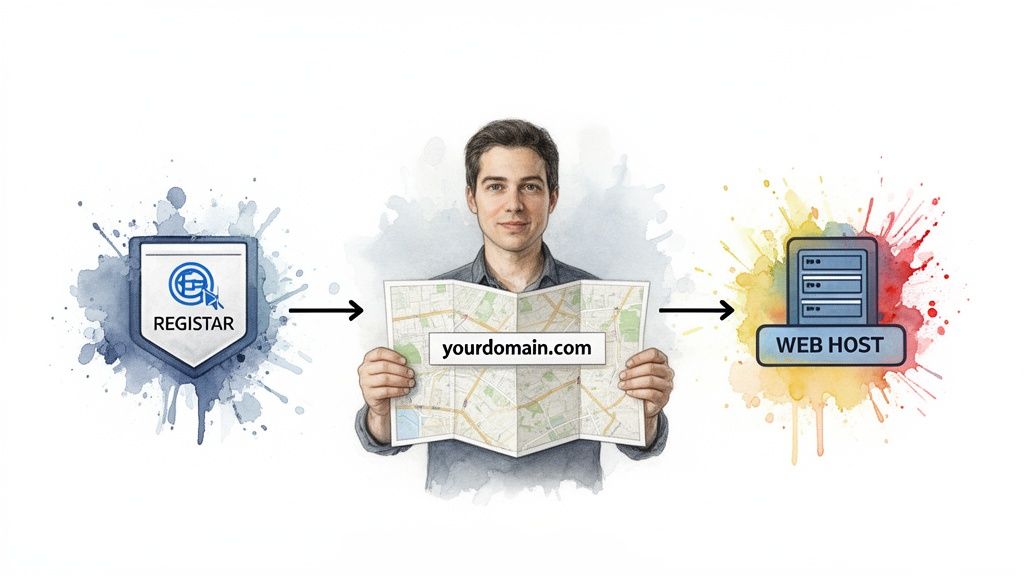
Finding and Updating Your Nameserver Settings
Alright, ready to make the switch? Let's dive into your GoDaddy account and get this done. The whole process is way less intimidating than it sounds, and I'll walk you through every click.
First things first, get logged into GoDaddy. Once you're on the main dashboard, you'll want to find your Domain Portfolio (sometimes they call it "My Products"). This is your command center for every domain you own.
Navigating to Your DNS Controls
Scan your list of domains and click on the specific one you need to update. This brings you to its individual settings page. Now, look for an option labeled "DNS" or "Manage DNS" and click on that. This is where the magic happens.
You'll land on the DNS Management screen, where you'll see a section just for Nameservers. It's probably showing GoDaddy's default ones right now. What you're looking for is a button that says "Change" or something similar.
But before you click anything, there’s one critical pre-flight check: make sure your domain isn't locked. A locked domain is a fantastic security feature that prevents unauthorized transfers or big changes, including nameserver updates. You’ll usually see a "Domain Lock" toggle right there on the domain settings page. Just flip it to Off before you proceed. You can—and definitely should—turn it back on when you're finished.
This is pretty much what you'll be looking for inside the GoDaddy interface.
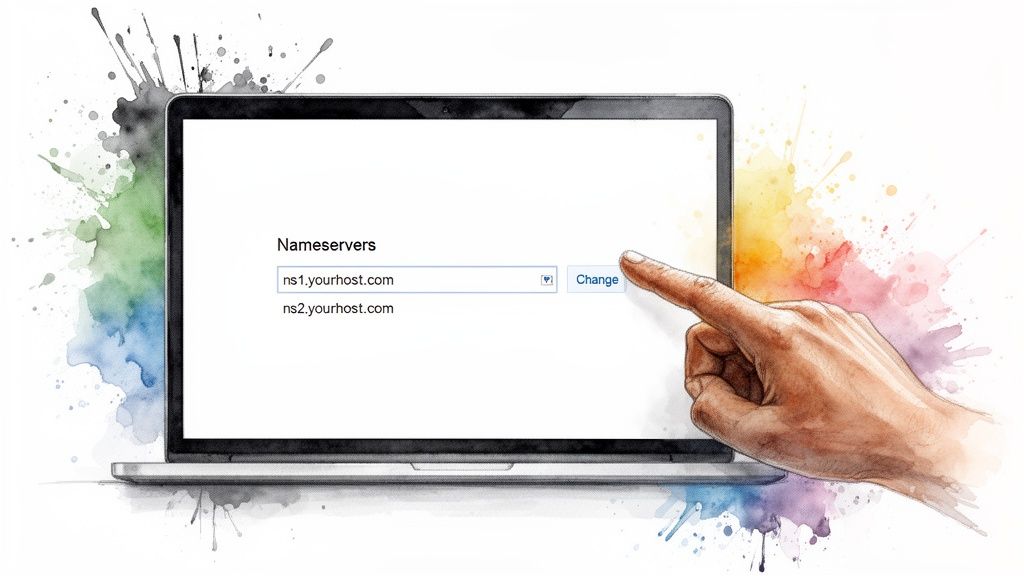
As you can see, you'll get the option to plug in your own nameservers, replacing the defaults with the new ones from your hosting provider.
Entering Your New Nameservers
Go ahead and click that "Change" button. A new screen will pop up asking for your new nameservers. These are the addresses your web host gave you, which usually look something like ns1.yourhost.com and ns2.yourhost.com.
Carefully copy and paste them into the fields. Seriously, double-check for typos. A single misplaced letter is the number one reason these things fail.
Once they're in, hit "Save." GoDaddy usually throws up a consent box to make sure you know what you're doing. Give it your okay, and that's it. You've done it!
After making a move like this, you might be wondering, "Now what?" If you're looking for some direction, our guide on what to do after you've bought a domain is a great next stop: https://namesnag.com/blog/i-bought-a-domain-now-what
And remember, your choice of registrar can make this whole process easier or harder in the future. Learning how to pick the best domain registrar for your needs is a smart move.
Understanding DNS Propagation and The Waiting Game

Alright, you've hit "Save" on your GoDaddy nameserver change. Now comes the part that drives everyone nuts: the wait. This quiet period is called DNS propagation, and it’s basically the time it takes for the entire internet to get the memo about your domain's new address.
I like to think of it as sending a change-of-address notice to every post office on the planet. It's not instant. They all have to get the notice, file it, and update their records. Frantically refreshing your browser won't speed it up—trust me, I've tried.
This global update can take anywhere from a few minutes to a full 48 hours. Most of the time, you'll see the change kick in within a few hours, but you should always plan for that full two-day window. It's all about setting the right expectations for yourself and your team.
What Affects Propagation Speed?
So, why the huge time range? A few different things can influence how quickly the change shows up on your computer. It's not like a single switch gets flipped.
The usual suspects for delays are:
- Your ISP: Your internet provider (think Comcast or Verizon) caches DNS info to make your browsing faster. It might hold onto the old address for a while before it bothers to check for a new one.
- Your Location: A server in your city might get the update almost immediately, while one halfway across the world could take much longer.
- DNS Caching: This is the big one. Routers and servers at every level of the internet hold onto old DNS information for a set time (known as TTL, or Time To Live). You’re essentially waiting for all these different caches to expire and grab the fresh data.
The bottom line here is to be patient. Instead of worrying that you broke something after you change nameservers on GoDaddy, you can confidently tell your team, "The change is in, and we should see it live everywhere within 48 hours."
This waiting game is especially real for domain investors who've just picked up a new name. If you snag a valuable domain from an expiring domains list, you want its traffic and authority pointing to your new server as soon as humanly possible. Understanding the propagation timeline helps you plan your next move without the stress.
Most nameserver changes on GoDaddy go off without a hitch. But let's be honest, every once in a while, you hit a snag. I've walked countless people through this process, and I've seen the same few issues pop up again and again.
The most common roadblock by far is the "Domain Locked" error. This isn't a glitch—it's GoDaddy's way of protecting your domain from unauthorized transfers or changes. It’s a good thing!
If you see this error, just pop back to your main domain settings page. You'll find a "Domain Lock" toggle. Switch it to Off, go make your nameserver update, and then—this is important—flip it back On when you're done.
Another surprisingly frequent culprit? A simple typo. Nameserver addresses like ns1.somehost.com need to be perfect. One wrong letter or number and the whole thing fails. My advice is simple: always copy and paste the nameservers directly from your hosting provider. Don't try to type them out by hand.
Nameservers vs. A Records: The Ultimate Showdown
Now for the big one—the mix-up between changing your nameservers and just updating an A record. Getting this right is fundamental. It affects not just where your website lives, but its entire digital footprint and even its long-term health. We talk more about the bigger picture in our guide on domain name reputation.
So, what's the difference?
Changing Nameservers: Think of this as a complete change of address for your domain's entire digital life. You're telling the internet, "Hey, my new host is now in charge of everything for this domain—website, email, all of it." This is what you do when you move to a new hosting company.
Updating an A Record: This is a much more surgical change. You're keeping GoDaddy as the DNS manager but just telling the "A" (Address) record to point your domain to a new server IP address. It’s like telling the post office to forward only your packages to a new address, while all your letters still go to the old one.
To help clear things up, here’s a quick table breaking down when you’d use one over the other.
Nameserver Update vs Other DNS Changes
| Action | What It Does | When to Use It |
|---|---|---|
| Change Nameservers | Delegates all DNS management (website, email, etc.) to a new provider. | When you move to a new hosting company (e.g., Kinsta, Cloudways). |
| Update A Record | Points the domain (or a subdomain) to a specific server IP address. | When your hosting IP changes but you're keeping DNS management at GoDaddy. |
| Update CNAME Record | Points a subdomain to another domain name (not an IP address). | When using services like Shopify or pointing www to your main domain. |
| Update MX Records | Directs where your domain's email should be delivered. | When you sign up for a third-party email service like Google Workspace or Zoho Mail. |
At the end of the day, understanding these distinctions is key to managing your domain effectively and avoiding unnecessary downtime.
A simple way to remember it: Changing nameservers hands over the entire address book to someone else. Changing an A record just updates one phone number in that book. Knowing which one you need to do will save you a world of headaches.
A Domain Investor’s Playbook for Nameserver Changes

For those of us hunting for digital real estate, knowing how to change nameservers on GoDaddy is less a technical chore and more of a critical post-acquisition reflex. When you snag a gem from a list of Expiring domains, especially one with a great backlink profile, the clock is already ticking.
Your first order of business is to yank it off GoDaddy's parked nameservers and point it to your own hosting. Immediately.
Capture Value Instantly
Why the rush? Every second a valuable domain sits on a generic parking page, you're leaking traffic and letting its authority evaporate into thin air. By getting it pointed to your own servers, you can instantly set up 301 redirects or launch a mini-site to start capturing that precious 'link juice'.
This isn't just a best practice; it's a core part of any solid domain name investment strategy. You're putting the domain's authority to work from the moment you own it.
I once found a killer domain by filtering for domains expiring in the next 3 days that had fantastic authority. Within an hour of the purchase completing, I changed the nameservers to my host and redirected it to my main project, immediately funneling its authority. It's a game-changer.
It’s a powerful, quick-win move that separates serious SEOs and domain investors from the hobbyists.
From Acquisition to Action
The workflow is simple but devastatingly effective: find a high-potential asset, acquire it, and point it toward your project before the digital trail goes cold. This applies whether you're grabbing a dropped domain from the Available domains list or sniping one in its grace period. Speed always matters.
- Prevent DNS Drift: Letting a valuable domain sit idle on parked nameservers can signal to search engines that the site is dead or abandoned, which is the last thing you want.
- Maximize Link Equity: Point that domain to your money site or a relevant piece of content to start benefiting from its existing backlinks right away. Don't let that hard-earned authority go to waste.
- Establish Ownership: A swift nameserver update is the first real step in making a domain truly yours and integrating it into your portfolio. It’s your flag in the ground.
This simple playbook transforms a domain purchase from a simple transaction into a strategic SEO maneuver.
Got Questions? Let's Clear Things Up.
Still have a few things swirling around in your head? That's completely normal. Whenever you start poking around with nameservers for the first time, a few common "what-ifs" always seem to pop up. Let's tackle them head-on.
How Long Does This Really Take?
Okay, so inside your GoDaddy account, the change looks instant. But that's just the first step. The real action is what we call DNS propagation, and the official window for that is up to 48 hours.
In my experience, though, you'll almost always see the change start to kick in within just a few hours. The 48-hour figure is the absolute worst-case scenario. Still, it's smart to plan for the full two-day period, especially if you're launching a new site. That way, you won't be pulling your hair out if it doesn't show up right away.
Will Changing My Nameservers Wreck My Email?
It absolutely can if you're not careful. Honestly, this is the most critical part of the entire process to get right. Your nameservers are the master control for all your DNS records, and that includes the all-important MX records that direct your email.
Here's the deal: Before you even think about hitting "save," you must make sure your new DNS host (whether that's your web host or a third party) has a perfect copy of your existing MX records. If you use an outside service like Google Workspace or Zoho Mail, you need to grab their specific MX records and plug them into your new provider's DNS settings.
Do not skip this step. Seriously. You'll save yourself a massive headache.
Can I Switch My Nameservers Back To GoDaddy?
Yep, you can always go back. If you try out a new host and decide it's not for you, or you just want to return to GoDaddy's DNS for any reason, the process is just as simple.
You'll follow the exact same steps we went through earlier. But instead of pasting in custom nameservers, you'll see an option like "Use GoDaddy Default Nameservers." Just click that, save the changes, and the reverse propagation process will begin. It’s a good safety net to have.
The bottom line is that you're never locked in. You can update your nameservers as many times as you need to. Just remember to account for that propagation delay every time you make a change.
What's The Difference Between Nameservers And Hosting?
This is a fantastic and very common question. Thinking about it with an analogy makes it click.
- Web Hosting: Think of this as the physical plot of land where you build your house (your website). It’s the server where all your files, images, and content are actually stored.
- Nameservers: These are like the GPS coordinates in a massive, global address book. They tell everyone on the internet how to find your specific plot of land.
When you change your nameservers, you're not moving your house. You're just updating the official address in that global directory so that all the traffic gets sent to the right place.
Finding the right domain is the first step in any successful online project. Instead of sifting through thousands of junk domains, let NameSnag do the heavy lifting. Our platform analyzes over 170,000 domains daily to find high-value, spam-free names with real SEO potential. Discover your next great domain by browsing our curated lists of Available domains and Expiring domains today.
Find Your Perfect Domain
Get access to thousands of high-value expired domains with our AI-powered search.
Start Free Trial